FTMS Data Fields for Garmin
Absolute Bollocks Creations offers a suite of Garmin data fields that connect to FTMS-compatible exercise equipment over Bluetooth Low Energy (BLE). See real-time metrics from bikes, ellipticals, rowers, treadmills, and more — directly on your Garmin device.
Start Here (Recommended)
Install → add to a Garmin activity → connect to your FTMS machine → verify metrics → unlock when ready.
Legal: Privacy Policy | Terms & Conditions
Quick Compatibility Check
- Garmin: Your device must support Connect IQ Data Fields and the native activity you plan to use (for example: Indoor Bike, Elliptical, Row Indoor, Treadmill).
- Equipment: Your machine must support FTMS over Bluetooth. (Most modern smart trainers and many newer machines do.)
- Try it first: Install and test in free mode to confirm it connects and shows metrics on your watch.
If you’re unsure, follow the Setup & Installation Guide — it walks you through adding a data field to a Garmin activity and connecting to your equipment.
Wondering whether a specific brand or machine is likely to work? See the Compatible Equipment & Garmin guide — it explains how FTMS works, Garmin’s BLE limitations, and which brands have released FTMS-capable equipment.
Choose Your Machine Type
Each machine type has a tailored page with screenshots, supported metrics, and setup notes.
How It Looks on Your Watch
Here are examples across the FTMS suite. Apps support six metrics per page.

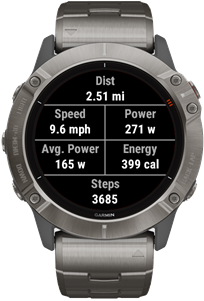
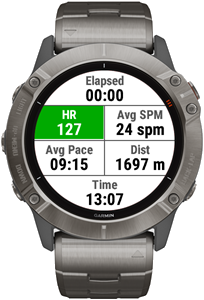
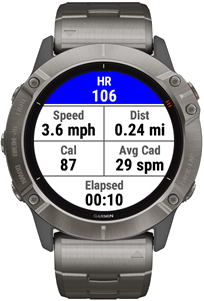
Note: Exact layouts and available metrics depend on your device model and what your machine supports in the FTMS standard.
Key Features
- Monitor Real-time metrics from your machine (power, cadence, speed, incline, resistance — machine-dependent)
- Create Dynamic Training Profiles for structured workouts (intervals, pyramids, hills, and more)
- Use native Garmin Workouts for structured workouts (Daily Suggested Workouts, Intervals.icu, Training Peaks, etc.)
- Record metrics into Garmin Connect so your session contain the data
- Recovery HR Rest Timer vibe at 1 minute and 2 minutes after activity stop
- No ads and we do not sell personal information
Customizable Dynamic Training Profiles
If your equipment supports controlling settings over Bluetooth, you can leverage Dynamic Training Profiles to customize your training experience. Create your own profiles customized for your equipment to perform intervals, pyramids, hills, and more.
Dynamic Machine Controls from Garmin Workout Targets
- Set Treadmill speed from Pace or Speed targets
- Set Bike resistance from Power targets
- Set Elliptical, Rower, Bike, or Stepper resistance based on Heart Rate targets
Try Free, Unlock for Full Sessions
You can install and use the FTMS data fields in a free trial mode, limited to the first 10 minutes of each activity. During that time, all features are available so you can verify compatibility and performance with your equipment.
When you’re ready to remove the time limit, unlock via an annual subscription handled securely through Gumroad. The process is simple: Purchase → receive a license key → request an unlock code → enter it in Garmin settings.
Tip: The fastest path is to install and test first. If it connects and shows the metrics you want, then unlock.
Pricing Options
Option A: Annual Subscription (Gumroad)
Best if you want ongoing updates and support. Unlock individual apps or save with the bundle. 2-year pricing options may be available.
Secure checkout via Gumroad. You’ll receive a license key by email.
Use the license key to generate the Unlock Code. Enter the Unlock Code in Connect IQ application Settings.
Option B: One-Time Purchase (FTMS All Sync)
Prefer a one-time purchase? FTMS All Sync supports all machine types in a single application, with the same customizable Dynamic Training Profiles supported by the data fields.
One payment per Garmin device. Great if you switch between machine types.
Not sure which to choose? Start with the free test — if it works with your setup, you can decide in minutes.
What These Data Fields Do
These FTMS data field applications let your Garmin device connect to FTMS-compatible bikes, ellipticals, rowing machines, stair climbers and steppers, and treadmills. The apps collect supported metrics from your equipment and display them on your watch while recording them into your Garmin activity.
The exact metrics available depend on your machine and what parts of the FTMS Bluetooth standard it implements (for example: some devices support incline control or power targets, while others do not).
Setup, Profiles, and Help
Installation
Garmin data fields run as a screen inside native Garmin activities (like Indoor Bike, Elliptical, Row Indoor, or Treadmill). If you’re new to configuring data fields, follow the setup guide first — it will save you time.
FAQ
Common questions and troubleshooting steps are covered in the FAQ — start there if the data field installs but doesn’t connect or show metrics.
Dynamic Training Profiles
Want structured workouts on inexpensive home machines? Build custom training profiles for intervals, pyramids, hills, and other formats. Get more out of your equipment without replacing it.
Native Garmin Workouts
Already using native Garmin Workouts? Daily Suggested Workouts, manually created workouts, or 3rd party integrations like Intervals.icu, Runna or Training Peaks?
FTMS datafield now supports these workout profiles for dynamic settings controls on your trainer. For details see the Garmin Workouts page
Terms & Conditions | Privacy Policy | Contact