Purchase & Unlock Garmin Full Features
Install → Use in Free Mode as long as you want
Enable Pro Mode → Automatic 14-day Trial
Trial Expires → Choose to Purchase or Disable Pro Mode
Two Ways to Purchase and Unlock all Features
- One Time Purchase
- Unlock with Bundle License
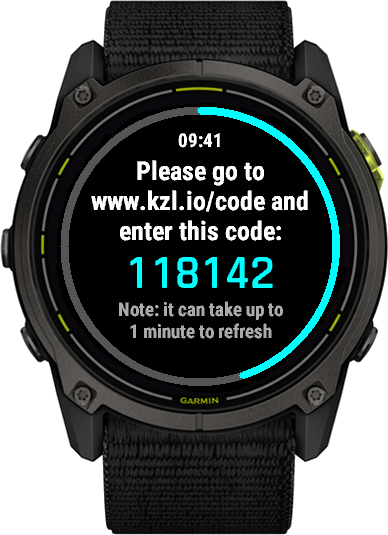
When the Trial period ends you will be presented with a One-Time Purchase screen. Follow the directions to enter the code and purchase the application for this device.
Alternatively you can unlock the application using the Absolute Bundle License Key. From Connect IQ enter the email address and License Key from your active Absolute Bundle subscription and save it. An active Bundle License Key will bypass the license screen.
If you decide not to purchase after the Trial expires, simply disable Pro Mode to continue using the free features.
Legal: Privacy Policy | Terms & Conditions
FTMS All Sync – One App for All Your Indoor Machines
FTMS All Sync is a custom Garmin activity that connects via Bluetooth FTMS to indoor bikes, ellipticals, rowers, stair climbers/steppers, and treadmills. Track power, cadence, speed, incline, and more from compatible smart trainers, all in a single workout app on your wrist.
If you already use the FTMS Datafields collection, FTMS All Sync offers an alternative: instead of separate datafields per activity, you get one activity app that adapts to whatever FTMS machine you step onto.
Key Features
- Runs as a dedicated activity on your Garmin watch or bike computer
- Supports indoor bike, elliptical, rower, stair climber, stepper, and treadmill
- Connects to Bluetooth FTMS-compatible smart trainers
- Captures real-time metrics like power, cadence, speed, distance, and incline (where supported)
- Six configurable data fields, with additional Pro Mode options on capable devices
- Works alongside FTMS Datafields for users who prefer native Garmin activities
Full vs Lite Versions
FTMS All Sync is available in two versions. Both share the same core FTMS connectivity and basic feature set, but the Lite build is trimmed to fit devices with tighter memory limits.
Lite Version – Supported Devices
The Lite version exists primarily to support devices such as:
- Descent G2
- Fenix 6 / 6 Solar / 6 Dual Power
- Fenix 6S / 6S Solar / 6S Dual Power
- Fenix 6S Pro / 6S Sapphire / 6S Pro Solar / 6S Pro Dual Power
- Forerunner 245
- Forerunner 55
- Instinct 3 Solar
These devices have limited memory for Connect IQ apps, so the Lite build trims some features that are present in the full version.
What Lite Leaves Out
Compared to the full version, FTMS All Sync Lite:
- Offers limited language localization (DE / NL / FR / ES)
- Does not include a second page of metrics in Pro Mode
- Does not show an on-device end-of-activity summary screen (stats still appear in Connect)
- Does not allow on-device display field editing (use Connect IQ or Garmin Express instead)
- Omits synthetic metrics such as calculated speed / average speed for certain machine types
- Omits less critical metrics such as peak speed, cadence, and power
In all other respects, the Lite version behaves like the full version—the same FTMS connectivity, same core metrics, and the same general in-workout experience.
Smart Fitness Machine Protocol (FTMS)
FTMS All Sync connects to fitness equipment that implements the Bluetooth Fitness Machine Service (FTMS). When paired with a compatible trainer, the app reads data directly from the machine and stores it as Connect IQ fields in your activity on Garmin Connect.
Supported trainer types include:
- Indoor bikes and smart trainers
- Elliptical trainers
- Rowing machines
- Stair climbers and steppers
- Treadmills
Not every machine exposes every metric. For example, only certain ellipticals and treadmills report incline, and some rowers may omit power or distance. FTMS All Sync supports the full range of metrics defined by the Bluetooth SIG FTMS profile, but can only show what your trainer actually broadcasts.
Trainer-Specific Guides
FTMS All Sync adapts its behavior and available fields based on the selected activity type. For more details on each mode, see the dedicated pages:
How FTMS All Sync Works
1. Selecting Activity Type & Trainer
From the main screen you can choose the activity type (bike, elliptical, rower, climber, stepper, treadmill) and select which trainer to connect to when starting your workout.
To specify the activity, press Menu and select Activity. Select the desired Activity mode from the list.
2. Scanning and Connecting
When you launch FTMS All Sync, the app begins scanning for nearby FTMS-compatible devices.
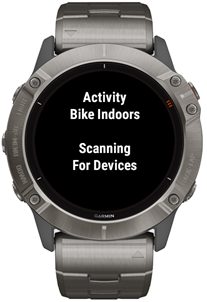
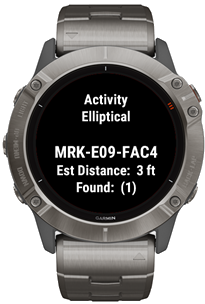
Once the app detects a compatible trainer, it shows the device name and an approximate distance estimate to help distinguish between multiple machines (for example, in a crowded gym). If more than one device is found, use the Next and Previous buttons, or swipe up/down on touchscreen devices, to scroll through the list of trainers.
When you’ve highlighted the correct machine, press Start to begin the activity. FTMS All Sync will connect over Bluetooth and start capturing metrics from the selected trainer.
3. Viewing Metrics During Your Workout
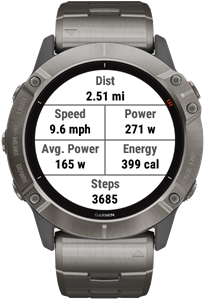
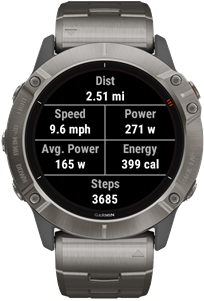
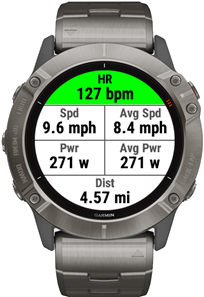
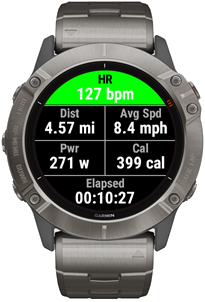
While the activity is running, FTMS All Sync displays six configurable data fields populated with metrics from your smart trainer. Available metrics vary by trainer type and what your machine actually reports. For example, some machines may expose power and cadence but not incline.
You can configure which metrics appear in each field either:
- Using the in-app menu (per activity type), or
- Via Garmin Connect IQ / Garmin Express app settings.
Basic vs Pro Mode
FTMS All Sync is fully usable in its basic mode, but Pro Mode unlocks additional features on capable devices.
You can configure most settings either inside the app (via the main menu) or from Garmin Connect / Garmin Express using the application’s settings panel.
Pro Mode Highlights
When Pro Mode is enabled, additional features become available, including:
- Time-based alarms – vibrate and alert every X minutes/seconds during your workout
- Auto Lap – automatically increment laps based on distance
- Heart rate zone alarms – vibration alerts when crossing zone thresholds
- Page 2 metrics – a second page of metrics (full version only)
- Dynamic workout controls – create custom workout profiles that adjust machine settings as you go
Common Questions
Why doesn’t FTMS All Sync write to native distance, power, and speed fields?
Short answer: Garmin only allows Connect IQ apps to write to custom data fields.
Garmin severely restricts how third-party Connect IQ applications interact with the built-in (native) activity fields. Only Garmin’s own apps can write to native distance, speed, power, etc. FTMS All Sync records data into its own Connect IQ fields instead.
- These custom fields are saved in the FIT file uploaded to Garmin Connect and can be tagged so third-party services (like Strava) may interpret them as standard metrics if they choose.
- Connect IQ apps cannot read or write data fields belonging to other apps—even from the same developer.
How can I get distance and speed into native Garmin fields?
Short answer: edit the activity in Garmin Connect and manually enter distance.
To propagate FTMS distance into native Garmin fields, edit the activity on Garmin Connect and enter the distance captured via FTMS All Sync into the native Distance field. Garmin will recompute average speed and pace based on that distance.
- Manually entered distance does not count towards some advanced metrics (e.g., VO₂max, endurance scores).
- There is no way to enter detailed lap-by-lap speed or distance based on Connect IQ fields; only high-level summary values can be edited.
- You can manually enter average or peak power, but Garmin Connect currently does not use those values for additional training metrics.
Why is my bike / elliptical / rower / stepper / treadmill not detected?
Short answer: either the device doesn’t truly support FTMS, or your Garmin can’t see it.
The Bluetooth stack available to Connect IQ apps is more limited than what mobile phones or tablets can use. In practice, that means:
- Some trainers use proprietary protocols instead of standard FTMS and therefore never appear as FTMS devices to your Garmin.
- Some trainers that work fine with apps like Kinomap or Zwift may still be “invisible” to your Garmin device due to hardware or stack limitations.
A good way to check basic compatibility is to use a Bluetooth scanner app on your Garmin, such as: BleScan.
- If BleScan cannot see your trainer at all, then your Garmin device cannot communicate with it over Bluetooth.
-
If BleScan does see the trainer but it does not advertise the FTMS service
00001826-0000-1000-8000-00805f9b34fb, then it is not broadcasting standard FTMS and FTMS All Sync will not connect.
I found a bug!
If you are experiencing behavior that looks like a bug, please use the Contact Developer option on the Garmin Connect IQ Store page for FTMS All Sync.
Terms & Conditions | Privacy Policy | Contact