


FTMS Workout
Comprehensive Support for Smart-enabled Trainers from your Android Wearable
Absolute Bollocks Creations proudly offers FTMS Workout for Wear OS devices. This application runs natively on your Android Wear OS device. Connect directly to Bluetooth enabled smart trainers and capture full device metrics to a workout activity.
The application supports Indoor Bikes, Ellipticals, Indoor Rowers, Stair Climbers, Stair Steppers and Treadmills. Connect via Bluetooth to all types of Smart FTMS-compatible exercise equipment and write native machine data to your tracked workout.
Metrics are written to Health Connect on your phone, storing rich activity data, including time series charts for heart rate, speed, power, and cadence. Optionally, Activity data can be directly uploaded to Strava as well.
Smart Fitness Machine Protocol (FTMS)
Using this application on your Wear OS device (Samsung Galaxy Watch, Pixel Watch, or other Wear OS device) you may connect to any FTMS-compatible indoor bike, elliptical trainer, rowing machine, stair climber or stepper machine, or treadmill. The application will collect real-time power, cadence, speed, incline, and other data directly from the smart trainer and store it to Health Connect during your workout.
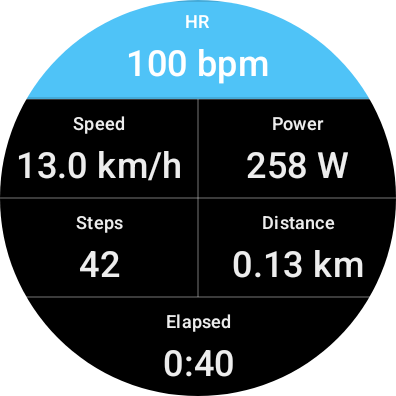
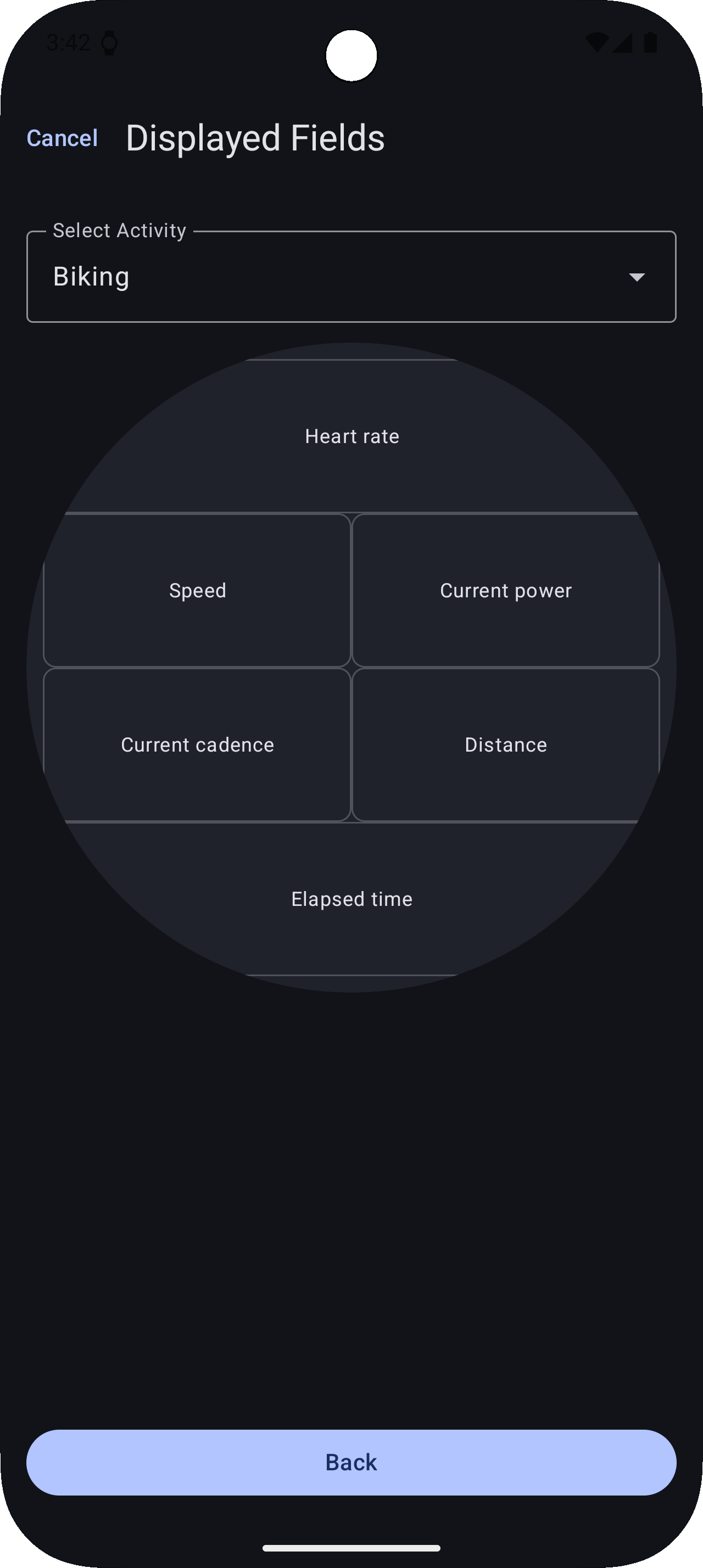
Workout metrics are displayed on a configurable six-cell display page. Each cell of the display can be individually configured for each activity type. Select from a wide range of supported values for each activity.
Supported Fitness Trainer Types and Activities
Application Overview
This application consists of two parts
Wear OS Application
This component runs natively on your Wear OS watch or other device running Wear OS 3+.
The Watch application provides direct user controls for settings and activity operations. It performs all functions related to Bluetooth communications with your fitness machine. Workout activity metrics from the fitness machine are merged with native data from Health Services on the watch. Completed workout data if sent to the companion app on the phone, where it is written to Health Connect, and optionally uploaded to Strava.
Android Companion Application
This component runs natively on your Android phone or tablet running Android 13+.
The companion application provides controls for all settings of both the watch and phone applications. It serves as the data bridge between the watch and Health Connect, as well as other third party integrations. Subscriptions are also managed from the Companion app.
Both applications are necessary to record a Workout activity. The Activity operations and metrics are only created and captured on the watch using Health Services. Preserving data into Health Connect must be done on the Phone so that data can be committed locally.
Health Connect does not sync across devices or to the cloud, so you must store Health Connect on the same device as your native fitness application. Data in Health Connect will be imported and synced with your other native activities in Samsung Health, Fitbit or other apps that sync with Health Connect.
Usage and Operation
Initial Configuration and Permissions
When first launching the Watch and Companion applications, initial permissions request dialogs will be presented
On the Watch, access to nearby devices, body sensors and Activities are required to discover and connect to Bluetooth devices and read activity metrics. Also, the watch needs to know your age to calculate Max Heart Rate and Heart Rate Zones, so it will prompt you to enter a birthdate (Month and Year only).
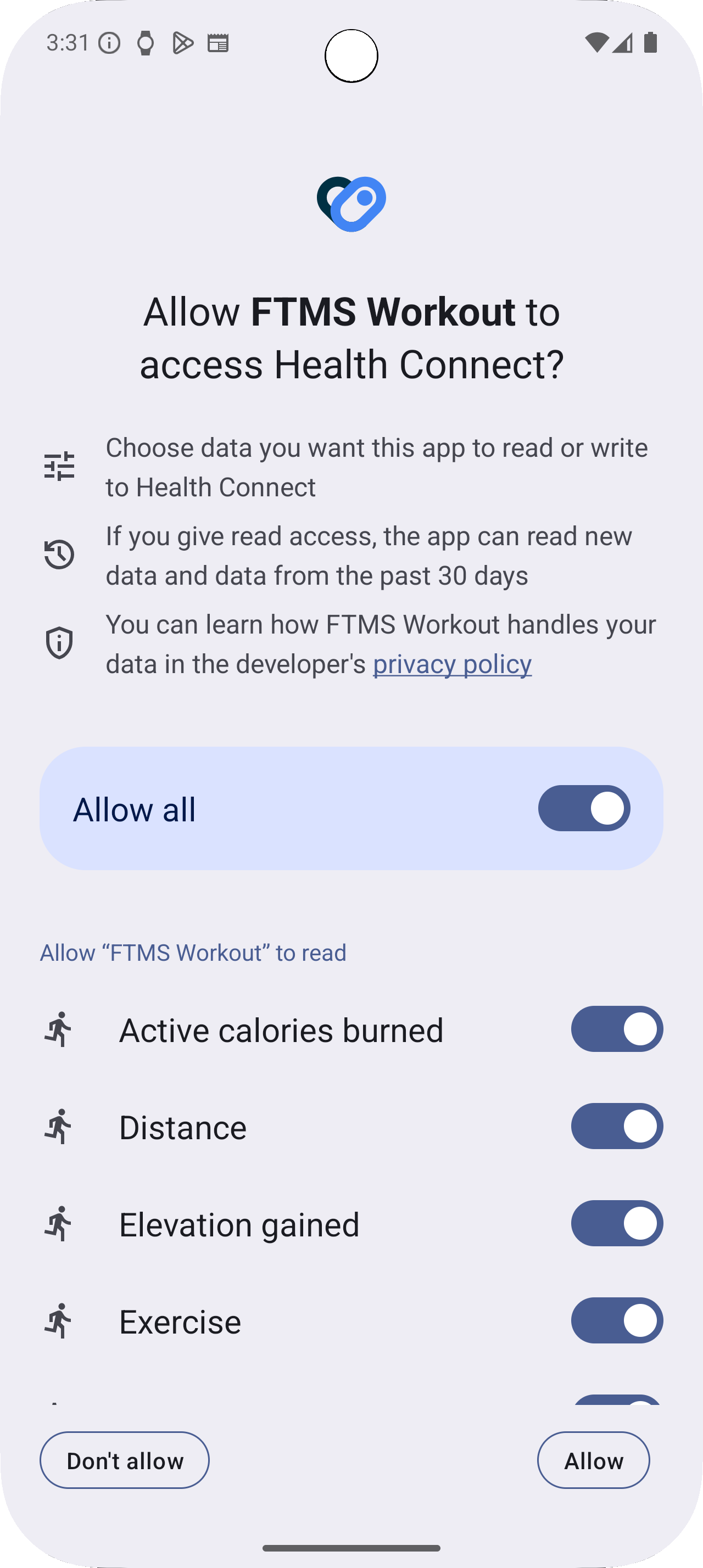
On the Companion application, access to Health Connect is required to store data from the activity. The Health Connect permissions dialog will be presented. You should select 'Allow All' to ensure that all types of metrics can be stored in Health Connect.
Note that Health Connect data is stored solely on the phone or tablet. Health Connect does not sync any data between devices or upload anything to the cloud
Using Watch the Application
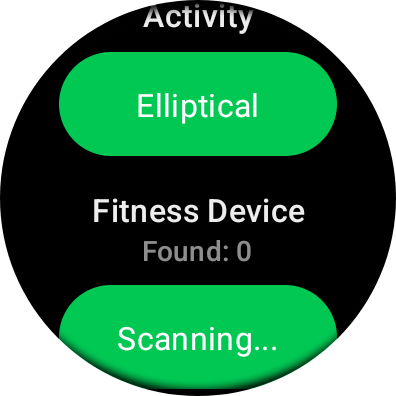
From the main screen on the watch after launching the application, you can configure the selected Activity Type and select the trainer to connect to when starting the Activity. Tap the Activity button and scroll to select the desired activity type. Initially the Fitness device discovery will display 'Scanning' while looking for compatible devices. Once at least one device is discovered, the button will be updated to show the device name. If multiple devices are found, tap the button to select from the available devices.
Selecting Start will connect to the selected fitness machine and begin the Activity. The 6-cell workout metrics screen will be displayed.
Selecting Settings allows you to customize the options and behavior of the application. Most of the workout related settings are configurable from the Watch. You may also configure settings from the phone or tablet using the Companion Application (see below.)
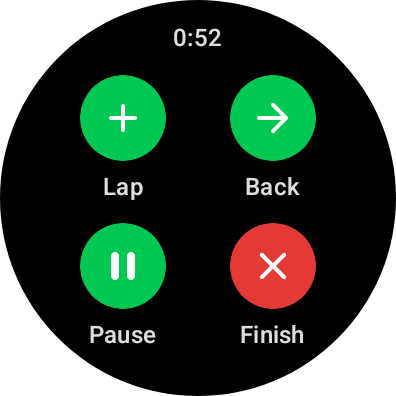
While the workout activity is running, swipe right or press Back to open the Controls screen. From here you can pause or resume, manually advance to the next lap, return to the workout metrics screen, or finish and save the activity.
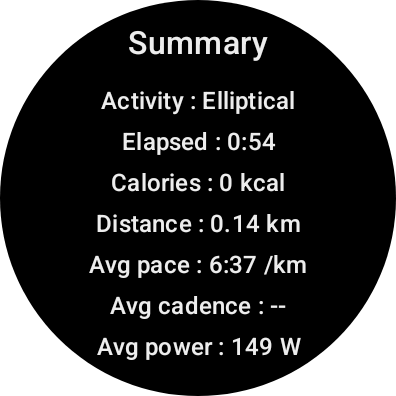
Once you select Finish, the activity will be stopped and the workout summary screen will appear. A brief progress bar shows the activity data being transferred to the Phone application so that it can be committed to Health Connect, and optionally uploaded to other providers, like Strava.
Using the Companion Application
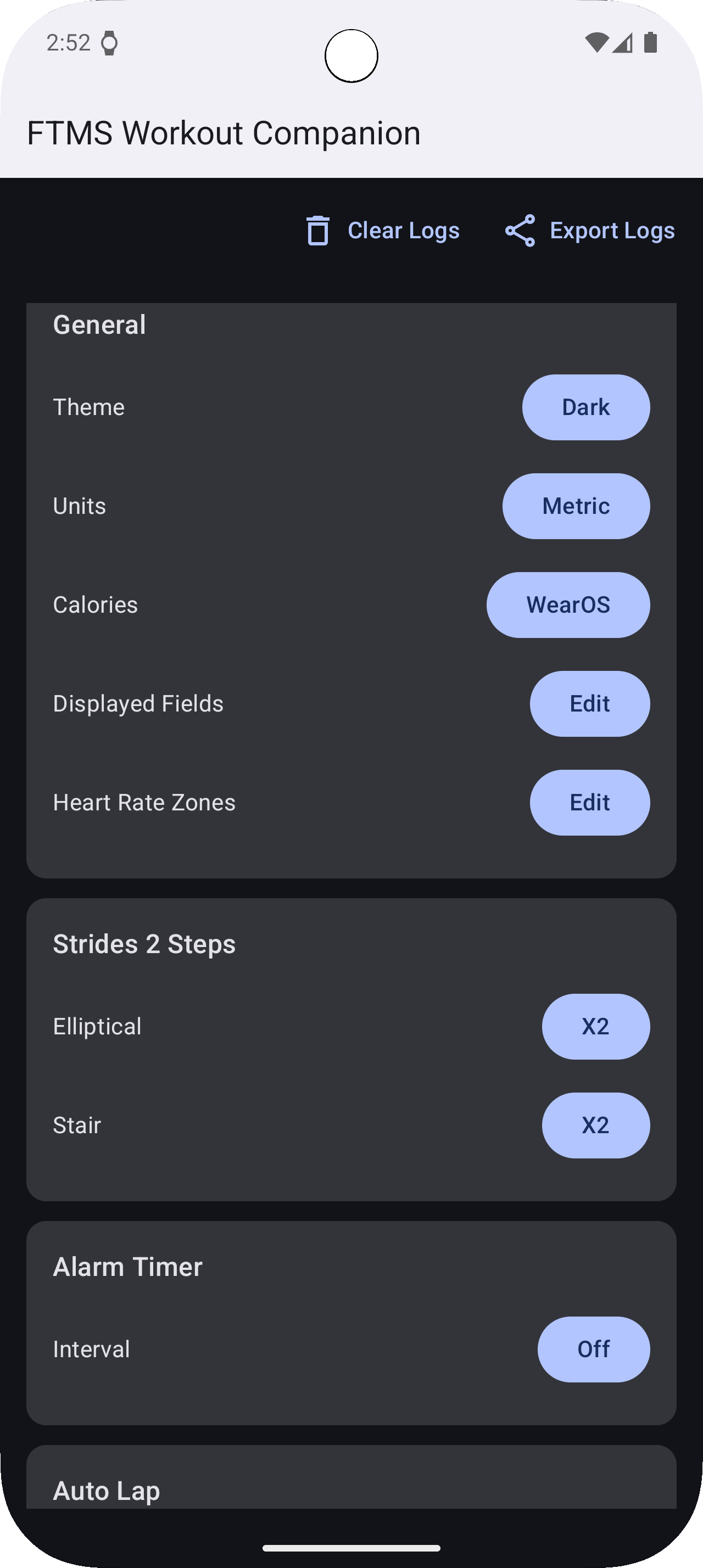
From the main screen of the companion you can configure all settings available to both the companion and watch applications
From top to bottom
- General Settings
- Theme - Choose from Light or Dark mode
- Units - Choose from Metric or Imperial
- Calories - Choose to use machine reported or Wear OS native reported calorie values
- Displayed Fields - Edit the data being displayed in each field during a workout
- Strides 2 Step Conversion
- Elliptical - Set Stride count to Step count multiple for Elliptical workouts
- Stair Climber - Set Stride count to Step count multiple for Stair Climber workouts
- Alarm Timer - Enable time-based vibration alerting during a workout: set the interval
- Auto Lap - Set the distance for a lap, New Lap will be triggered automatically - independent values for each sport type
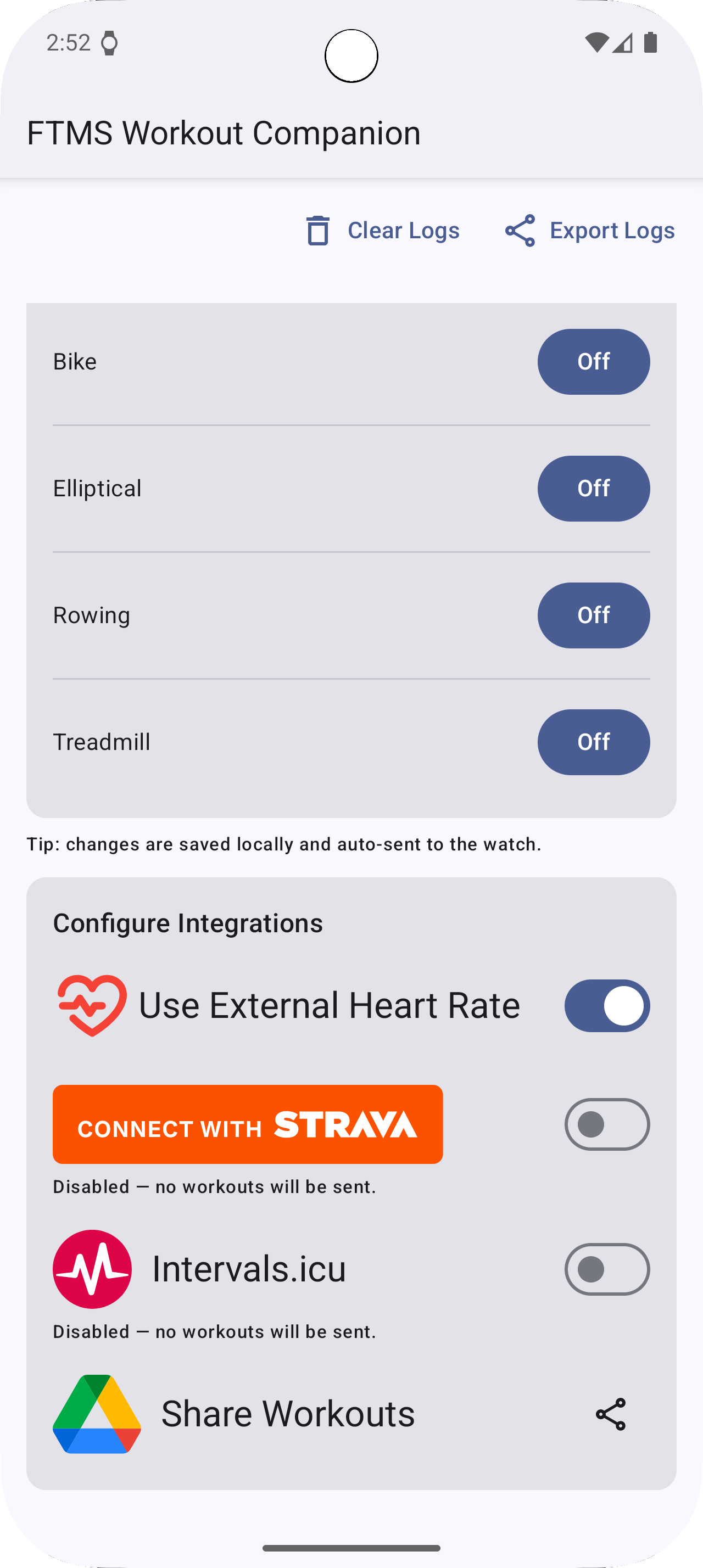
- Configure Integrations
- Use External Heart Rate - When enabled, connect to an external HRM instead of using the wrist optical sensor on the watch
- Strava - Enable automatic upload of workout data (in Fit format) to Strava at the end of the session
- Intervals.icu - Enable automatic upload of workout data (inFit format) to Intervals.icu as the end of the session
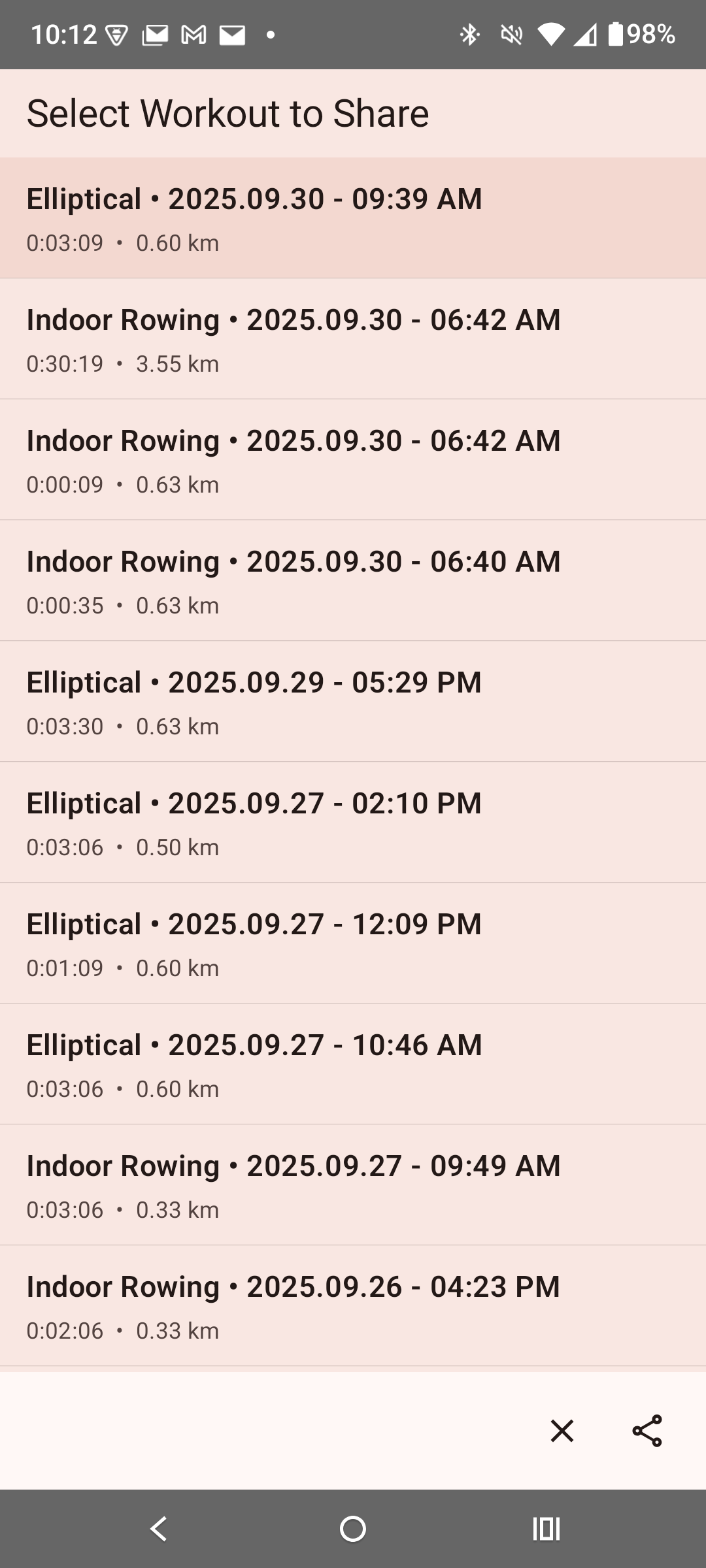
- Share Workouts - Share exported Fit file to Google Drive or optionally re-upload missing workouts to Strava or Intervals.icu
- Health Connect - Set or Modify the Health Connect permissions
Terms & Conditions | Privacy Policy | Contact